Change Wireless Security Settings
Open wireless security and choose WPA2-Personal or WPA3-Personal encryption. Set a strong Wi-Fi password of at least 12 characters, then save and apply.
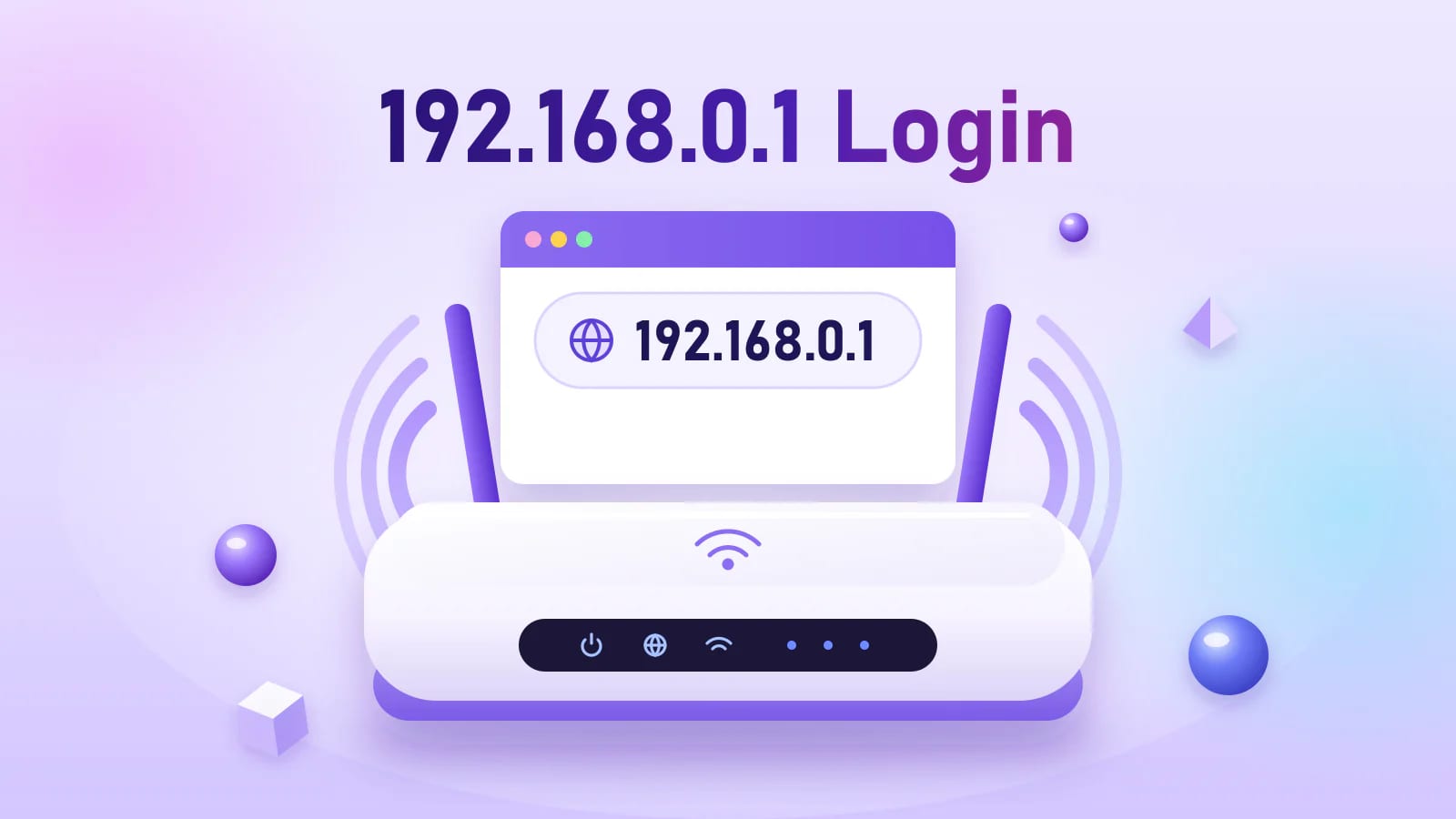
Private IPv4 address · works on your local network only
IP address type
Private
Local network only
Protocol version
IPv4
Four-octet address
Network role
Gateway
Router admin entry point
Router brands covered
9
TP-Link to Virgin Media
Step 01 · Access
These six steps take you from a connected device to the 192.168.0.1 login admin page in under a minute, as long as 192.168.0.1 is your router's default IP address.
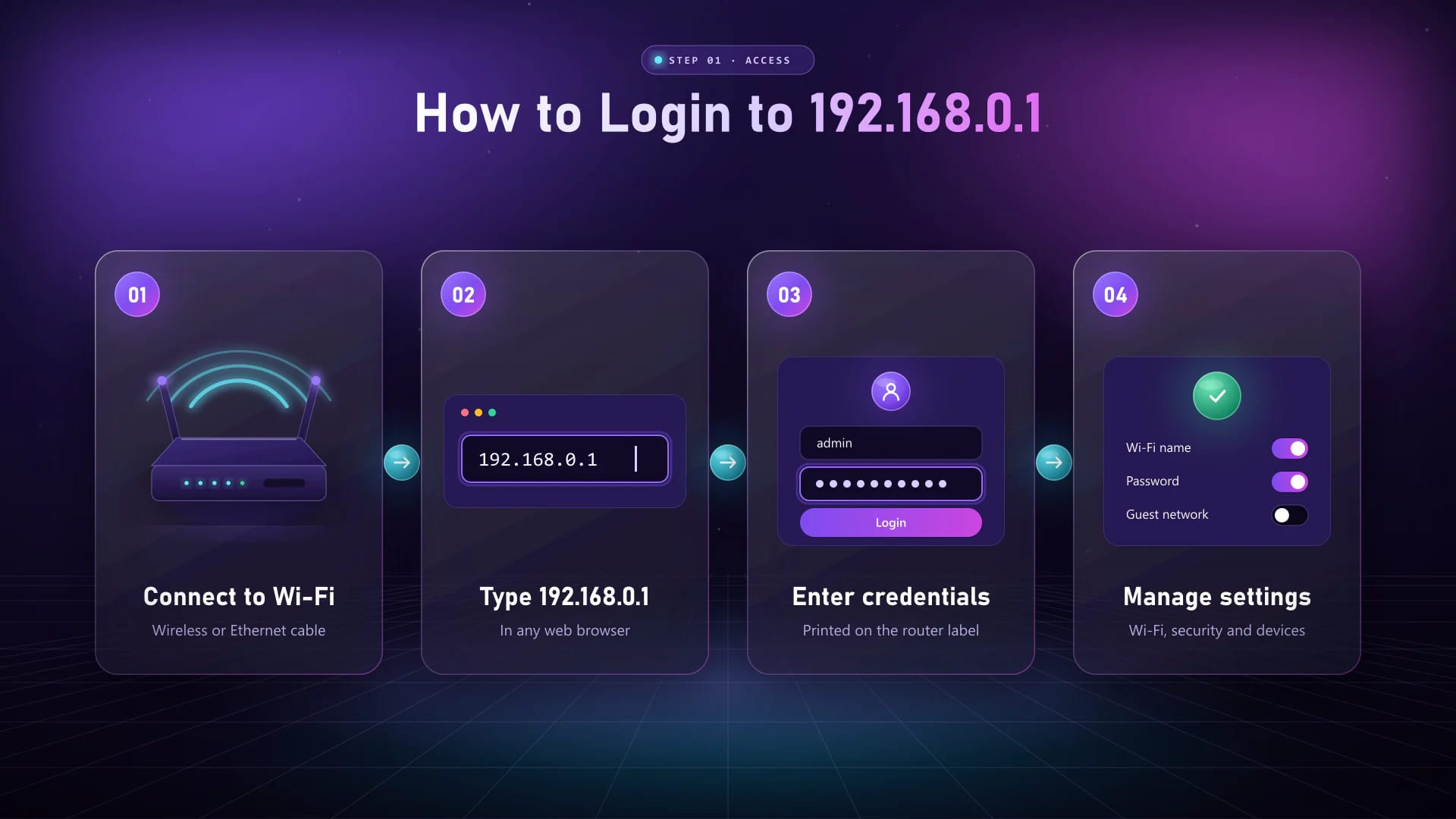
Connect your phone, tablet or computer to the router over Wi-Fi or with an Ethernet cable. You must be on the router's own network.
Open a browser, type 192.168.0.1 (or http://192.168.0.1) in the address bar, not the search box, and press Enter. Most failures here are common typing mistakes.
The router's login page loads. If you see a certificate or privacy warning, make sure the address starts with http:// rather than https://.
Look at the label on the bottom or back of the router, where the default admin login is printed.
Enter your credentials accurately — the default admin username and password for popular brands are listed below.
Select Login or press Enter to open the 192.168.0.1 admin dashboard with all basic and advanced settings.
Credentials
The most common default login for 192.168.0.1 is admin / admin, followed by admin / password and admin with a blank password. The exact pair for your model is printed on the router label, so check it first — defaults vary by model and firmware.
| Router | Default username | Default password | Also opens at |
|---|---|---|---|
| TP-Link | admin | admin on older models; newer models ask you to create one | tplinkwifi.net |
| Tenda | admin, or no username | admin, or blank until you set one | tendawifi.com |
| D-Link | admin | Blank (leave the field empty) | dlinkrouter.local |
| NETGEAR | admin | password | routerlogin.net |
| ZTE mobile hotspots | admin | admin | No web address |
| Arris gateways | admin | password | No web address |
| Hitron gateways | cusadmin | password, or the key printed on the label | No web address |
| Technicolor gateways | admin | password, or the key printed on the label | No web address |
| Virgin Media Hub | None (leave it empty) | The settings password printed on the Hub | No web address |
| Router from your internet provider | Printed on the router label | Printed on the router label | Check the label or provider app |
If the default login no longer works, someone has changed it. A factory reset brings back the default username and password. Not sure which address yours uses? Check the routers that use 192.168.0.1.
Brands
Tenda and TP-Link are two of the most common routers on 192.168.0.1. Their admin pages look different, so here are the exact steps for each.
A 192.168.0.1 router Tenda makes also opens at tendawifi.com. If nothing appears at http://192.168.0.1, repeat the basic login steps first.
Many tp link 192.168.0.1 routers also open at tplinkwifi.net, which loads the same admin page while you are on the TP-Link network.
Step 02 · Configure
Once you are signed in to the admin panel, every setting below is a few clicks away. Change one thing at a time, then save and apply so you can undo it easily if something stops working.
Open wireless security and choose WPA2-Personal or WPA3-Personal encryption. Set a strong Wi-Fi password of at least 12 characters, then save and apply.
Open Administration or System Tools and replace the default admin password, so nobody on your Wi-Fi can sign in to 192.168.0.1 with the factory login.
Open WAN or Internet settings and pick the connection type your provider uses: Dynamic IP, PPPoE with the username and password from your ISP, or Static IP. Save and check the internet light.
Open LAN settings to change the router's own address, for example from 192.168.0.1 to 192.168.1.1 when it clashes with a modem on the same range. After saving, sign in at the new address.
Open DNS settings and replace the automatic servers with a trusted public DNS service by entering a primary and secondary server. It can speed up website lookups and add filtering or privacy.
DHCP automatically gives an IP address to every device that joins your network. You can enable or disable it, change the address range and lease time, or reserve a fixed address for a device.
Turn on the guest network in wireless settings and give it its own name and password. Keep guest isolation on so visitors can reach the internet but not your computers, cameras or printers.
Open parental controls to create internet schedules for each device, block websites or categories, and pause the internet during homework or bedtime hours.
Open Administration, System, Maintenance or Firmware Update. If a newer version is available, install it to fix security holes and bugs, and do not switch off the router while it updates.
Wi-Fi Control
Three of the most common jobs people sign in to 192.168.0.1 to do.
Step 03 · Secure
Both jobs start the same way — sign in to the admin panel, then open wireless settings.
Changing the Wi-Fi password through the admin panel disconnects everyone who used the old one, which makes it the quickest way to lock out people you did not invite.
Your network name (SSID) is what appears in the Wi-Fi list. Pick one that does not reveal your name, address or router model.
Reference
Both are private addresses that routers use as the default gateway to their admin page. They sit on different subnets: a router at 192.168.0.1 gives devices addresses starting 192.168.0, while one at 192.168.1.1 uses 192.168.1. Which one you need depends only on your router's make and model.
| Property | 192.168.0.1 | 192.168.1.1 |
|---|---|---|
| Purpose | Default gateway to the router management page | Default gateway to the router management page |
| Address type | Private IPv4 | Private IPv4 |
| Device addresses | 192.168.0.2 to 192.168.0.254 | 192.168.1.2 to 192.168.1.254 |
| Typical manufacturers | TP-Link, Tenda, D-Link and cable gateways | Linksys, ASUS and most NETGEAR models |
| How you reach it | Type it into your browser | Type it into your browser |
Your router only answers on one of these. Check the label on the back of the device if you are not sure which.
Reference
Your router's IP address is shown as the default gateway on every connected device. If it is not 192.168.0.1, use the address your device shows instead.
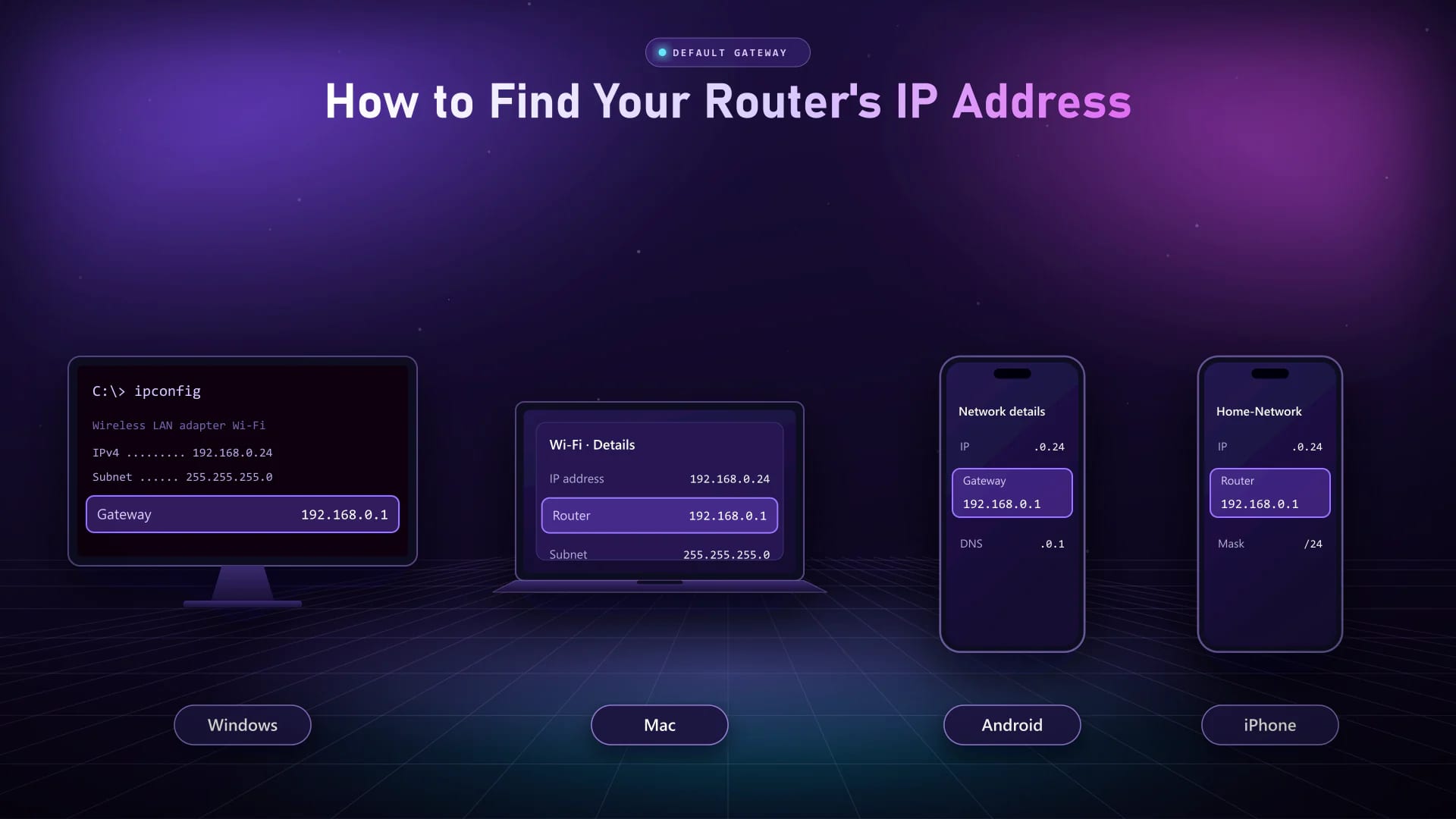
Note: Most routers have their IP address printed on the label on the back or bottom. It is also listed in the manual, the quick setup guide and on the manufacturer's support site.
Compatibility
The default address depends on the model and firmware, not just the brand. These are the brands and internet provider gateways most often set to 192.168.0.1.
TP-Link 192.168.0.1 Login
Tenda 192.168.0.1 Login
D-Link 192.168.0.1 Login
NETGEAR 192.168.0.1 Login
ZTE 192.168.0.1 Login
Arris 192.168.0.1 Login
Hitron 192.168.0.1 Login
Technicolor 192.168.0.1 Login
Virgin Hub 192.168.0.1 Login
Brand names identify compatible hardware only. This site is not affiliated with, endorsed by or sponsored by any router manufacturer.
Step 04 · Maintain
Remove devices you do not recognise, or take the router back to its factory state.
Unknown devices slow your Wi-Fi and can see traffic on your network. Removing them keeps your connection faster and more private.
Forgot the admin password? A factory reset brings back the default login and fixes most configuration problems, but it also erases your Wi-Fi name, password and internet settings, so note them first.
Reference
Two addresses, two jobs — one identifies a device inside your home, the other identifies your whole network to the internet.
Step 05 · Fix
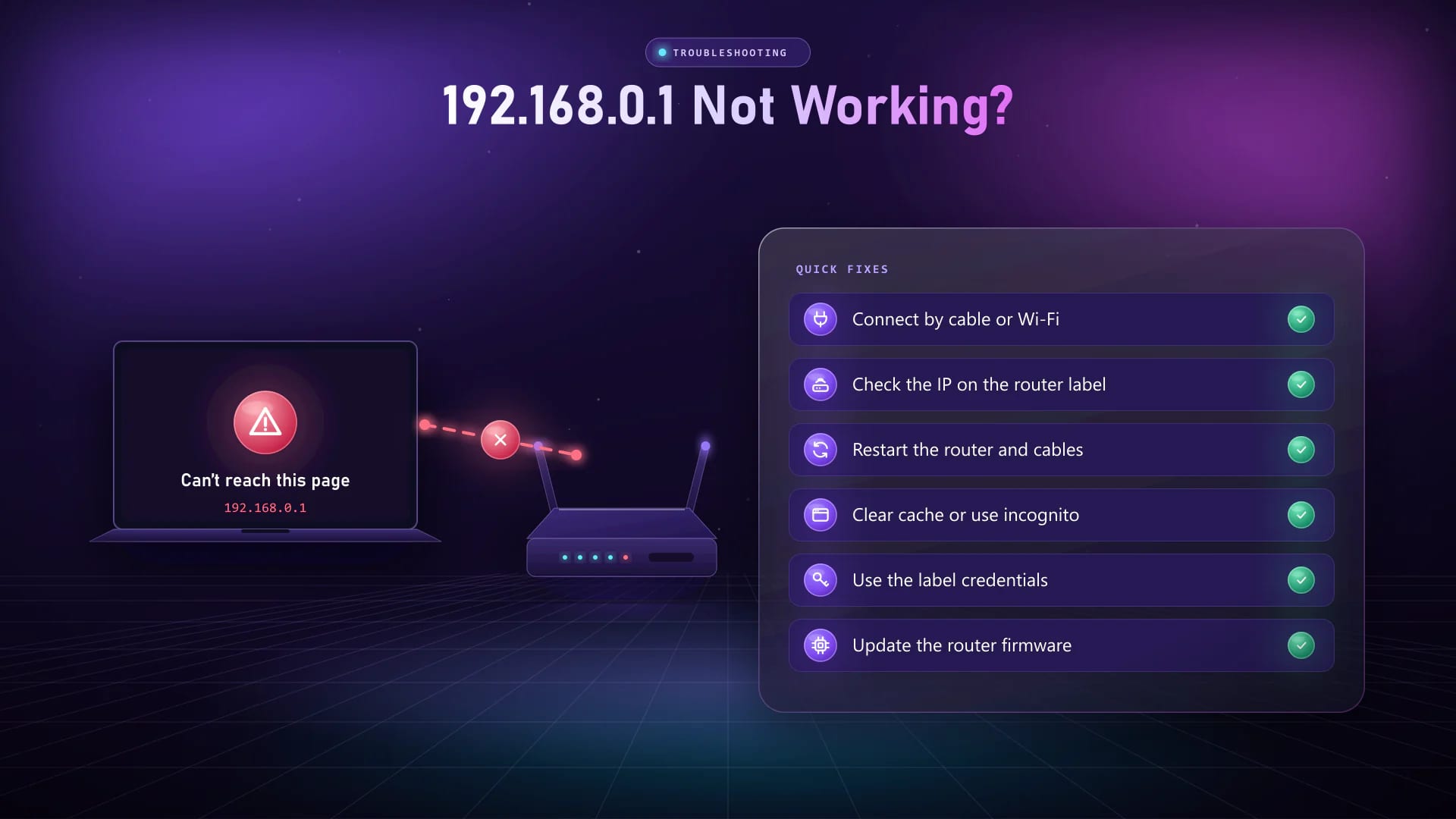
When the router 192.168.0.1 admin page will not open, refuses to connect or rejects your password, the cause is almost always the connection, the address, the browser or the login details. Work through these in order.
Solution
Solution
Solution
Solution
Solution
Solution
Solution
Solution
Typing fixes
The router page only opens when the address is typed exactly. These are the mistakes people make most often, and what to type instead.
| What was typed | Why it fails | Type this instead |
|---|---|---|
| 192.168.o.1 · 192.168.0.l · 192.168.l.0 · 192.168.0.i | A letter (o, l or i) replaced a number, so the browser treats it as a search. | 192.168.0.1 |
| 192.168 0.1 · 192.168. 0.1 · 192 168 0 1 · http 192.168.0.1 · https 192.168.0.1 | Spaces break the address into separate words. | 192.168.0.1 |
| 192.168.01 · 192.168.0.1.1 · 192.168.0.0.1 | An IPv4 address has exactly four numbers; a missing or extra part makes it invalid. | 192.168.0.1 |
| http//192.168.0.1 · http//:192.168.0.1 · http.//192.168.0.1 · http //192.168.0.1 · //192.168.0.1 | The colon or slashes are in the wrong place, so the browser runs a web search instead. | http://192.168.0.1 |
| https://192.168.0.1 · https//192.168.0.1 · https //192.168.0.1 | Most routers do not serve HTTPS on their local page, so the browser shows a connection or certificate error. | http://192.168.0.1 |
| www.192.168.0.1 | An IP address never takes “www”, so the browser cannot find it. | 192.168.0.1 |
| ip:192.168.0.1 · ip: 192.168.0.1 · ip.192.168.0.1 · ip. 192.168.0.1 · web ip 192.168.0.1 · web ip:192.168.0.1 | The extra “ip” text turns the address into a search term. | 192.168.0.1 |
| 192.168.0.1. · .192.168.0.1 · 192.168.0.1, | A stray dot or comma makes the address invalid. | 192.168.0.1 |
| 192.168.0.1/index · 192.168.0.1/index.html · http://192.168.0.1/index.html · 192.168.0.1/login.html · http://192.168.0.1/login.html | These paths exist only on some firmware; on other routers they return a blank or error page. | http://192.168.0.1 — the router opens its own login page |
| 192.168.0.1/ · http://192.168.0.1/ | A single slash at the end is fine, so this address works as typed. | http://192.168.0.1/ |
| 192.168.0.1, 192.168.1.1 · 192.168.1.1, 192.168.0.1 · 192.168.0.1 atau 192.168.1.1 · 192.168.1.1 atau 192.168.0.1 | A browser opens only one address at a time, so it searches the web instead. | 192.168.0.1, then 192.168.1.1 |
| ketik 192.168.0.1 · 192.168.0.1 advan | Extra words typed with the address make the browser search the web instead of opening your router. | 192.168.0.1 |
Still nothing? Your router may use a different gateway — compare 192.168.0.1 with 192.168.1.1 to see which one yours uses.
Answers
The questions people ask most before signing in to 192.168.0.1.
It is the private IP address many routers use for their admin page. Opening it in a browser lets you change the Wi-Fi name and password, internet settings, parental controls and firmware.
To login 192.168.0.1, connect to the router, type http://192.168.0.1 into your browser's address bar, enter the admin username and password from the router label, and select Login.
The default username and password of every router is printed on the label behind it. Common factory defaults are admin/admin, admin with a blank password, or admin/password, and newer Tenda and TP-Link models ask you to create one — see the Tenda and TP-Link login steps.
Not on the major router brands by default. A 192.168.0.1 admin123 login is sometimes set by an installer or internet provider, so use it only if your label or provider gives it. Repeated wrong guesses can lock the login page for a few minutes.
No. 192.168.o.1 uses the letter o instead of the number zero, so the browser runs a search instead of opening your router. The same goes for 192.168.0.l and 192.168 0.1 — type 192.168.0.1 using only numbers and dots.
It is not a valid address. An IPv4 address has exactly four numbers, so the extra part stops the page from loading. Remove it and type 192.168.0.1.
Most routers serve their admin page over plain HTTP on the local network, so https://192.168.0.1 shows a connection or certificate error. Type http://192.168.0.1 or simply 192.168.0.1 instead.
They are login web addresses built into TP-Link, Tenda and NETGEAR routers. While you are connected to that router they open the same admin page as 192.168.0.1; on any other network they will not load.
They are internal pages on some router firmware. You do not need them: opening http://192.168.0.1 on its own takes you to the router's login page.
It is not a router page. Some schools run an online exam system (ujian online) on a local server at this address, so it only opens on that school's own network. Ask the school's IT staff if it does not load.
Usually the router uses a different address, your device is not connected to that router's network, or mobile data or a VPN is in the way. Work through the 192.168.0.1 not working checklist.
Sign in to the admin page, open Wireless, then Wireless Security, and enter the new password in the password field. Our Wi-Fi password guide walks through every step.
Sign in, open LAN or Network settings, enter the new address such as 192.168.1.1 and save. The router restarts, and from then on you sign in at the new address.
If you are signed in, change it under Administration or System Tools. If you have forgotten it, hold the router's Reset button for 10–15 seconds to restore the default login from the label.
No. It is a private address that only works inside your local network. Learn how private and public IP addresses differ.
Yes. The admin page is served by the router itself, so it opens over Wi-Fi or an Ethernet cable even when the internet connection is down.
Yes. Connect your phone to the router's Wi-Fi, turn off mobile data, and open 192.168.0.1 in Chrome or Safari.
Your Wi-Fi name and password, admin password and all custom settings return to the factory defaults. The installed firmware version stays the same.
Change the default admin password, use WPA2 or WPA3 encryption with a strong Wi-Fi password, rename the network and keep the firmware updated — all covered in the router settings guide.
Connect to your own Wi-Fi first, then launch 192.168.0.1 and sign in with the credentials printed on the router label.
Your credentials go to your own router, never to this site.